 GIX
Who Holds and Controls Your Trading Capital When You Run Automated Software on MetaTrader 5?

- Check the broker's legal entity and account terms to learn how your funds are held.
- A trade permission lets an Expert Advisor send trading instructions through MT5.
- An EA's wider access depends on its code, platform permissions, and computer.
- A custodian or payment provider may be involved in holding or moving funds.
- Demo testing checks setup and behavior, but does not remove the risks of live trading.
Who holds your trading capital when you use an MT5 bot?
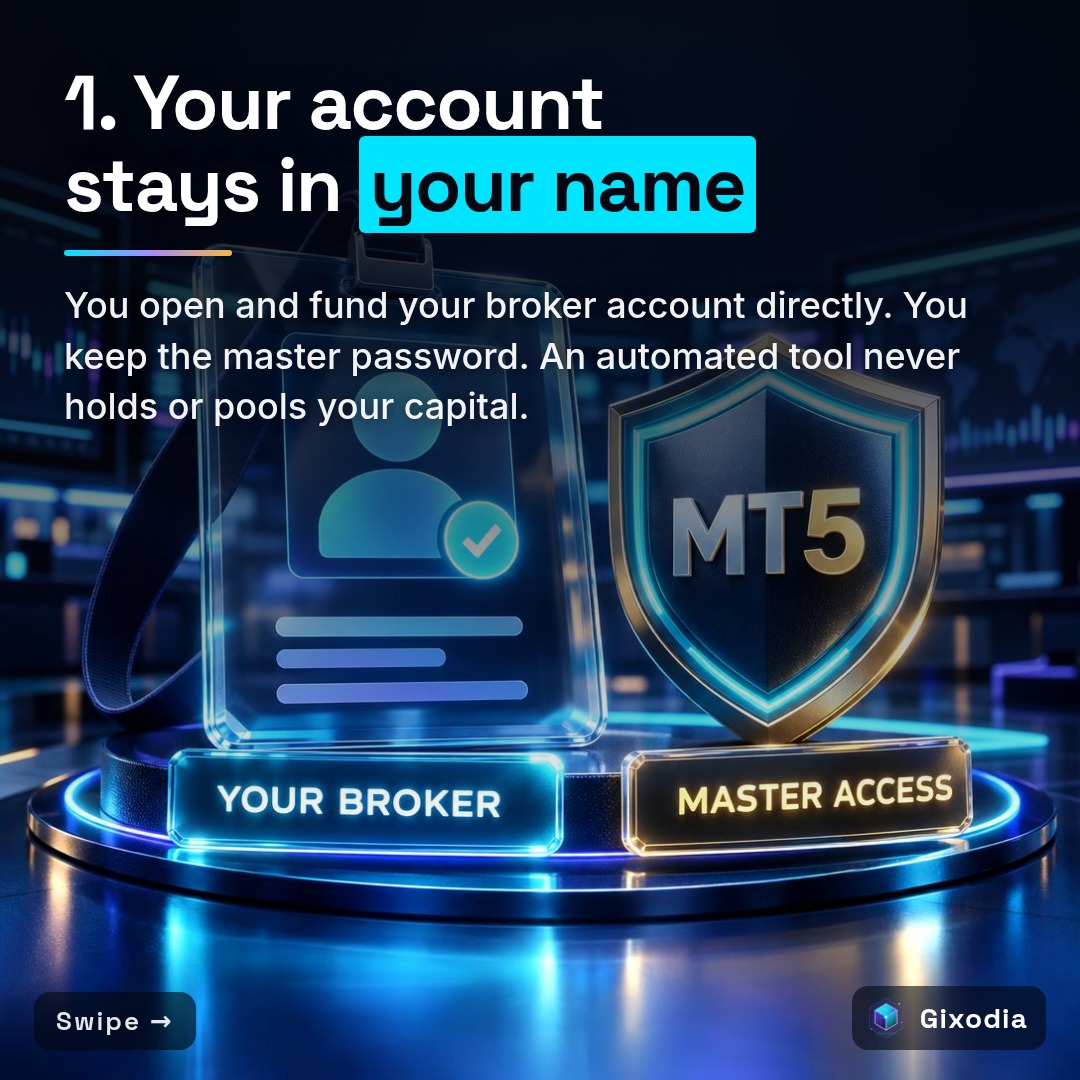
Your account funds are handled according to the account arrangement you have with the broker, but you should not assume the broker itself is the only party involved in custody. Check the broker's legal entity, account terms, and whether a custodian or payment provider handles any part of holding or moving your funds.
Opening an account with a trading platform or installing an EA does not tell you the full custody arrangement. Your broker's legal entity is the company named in the account agreement. The terms should explain how the account is structured and what happens to client funds. Check those details before depositing, rather than relying on a general statement that an account is in your name.
Some arrangements may involve another company that processes payments or holds assets. Find out whether one is involved, what it does, and which company is responsible for each part of the service. Rules and protections vary by country and by the legal entity serving you.
For example, UK rules for firms covered by the FCA's client assets regime are described in its [client assets information](https://www.fca.org.uk/firms/client-assets). This is guidance for firms within that regime, not a description of the rules in every country. Check the regulator and account terms that apply to your own arrangement.
What can an Expert Advisor do in MetaTrader 5?
An Expert Advisor is a program that runs inside MT5 and can send trade instructions when automated trading is enabled. Its actual access depends on how it is written and which permissions are allowed, so the label “EA” alone does not tell you everything it can do.
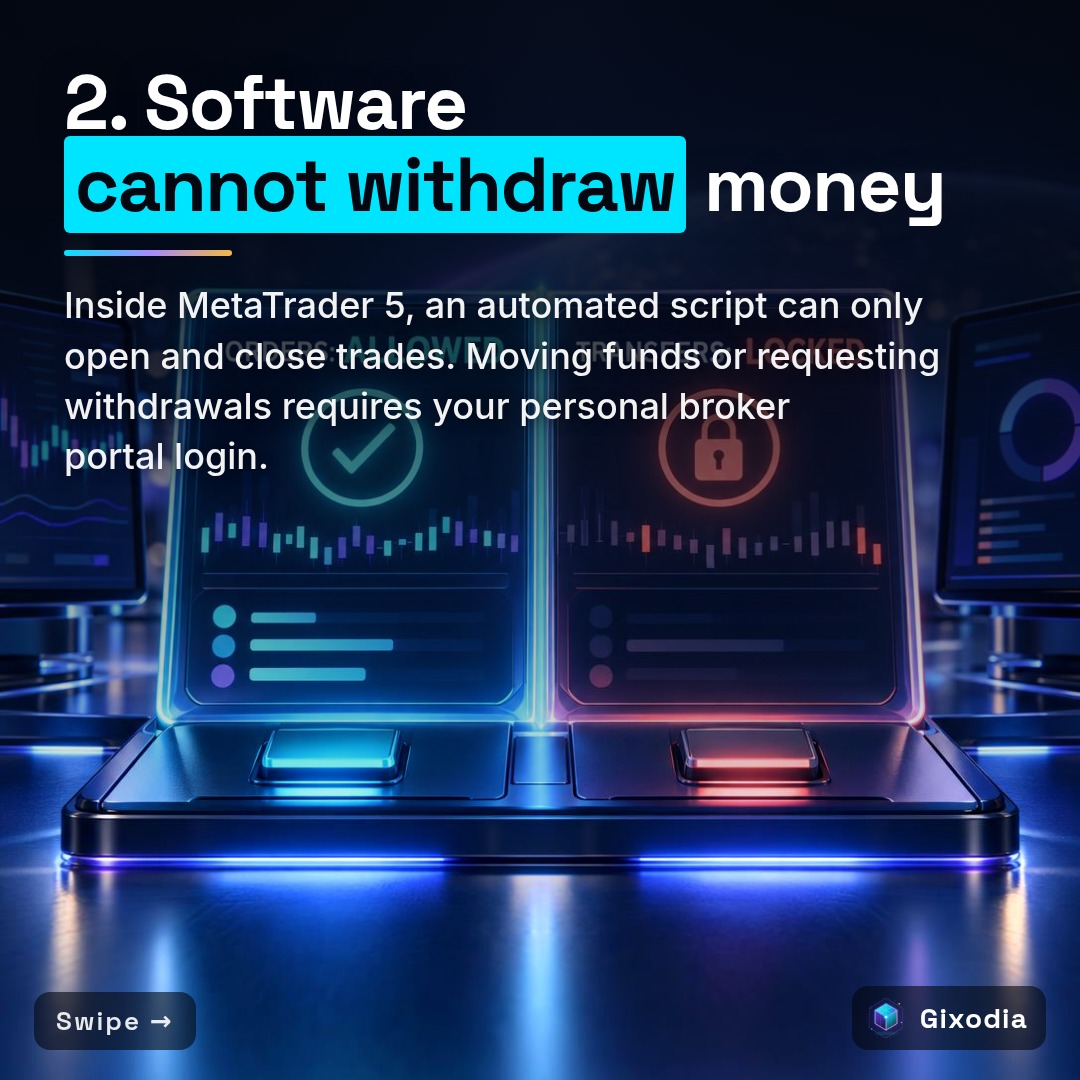
In a typical setup, the program sends an instruction to open, change, or close a trade through the terminal. That is different from signing in to your broker's portal to request a withdrawal. However, an EA is code running on a computer, and its behavior is shaped by more than the ordinary trade control.
Some programs may request access to external libraries or web requests. The terminal has settings for these permissions, and external access can create risks beyond placing trades. Review the options for Expert Advisors in MT5 and allow only access you understand. MetaTrader's [automated trading help](https://www.metatrader5.com/en/terminal/help/algotrading) explains relevant terminal controls.
The computer matters too. Malware on the device, a person with remote access, or unsafe software installed alongside MT5 may have access beyond the EA's usual trade function. Keep the device and remote access secure, and do not assume that a platform setting protects the whole computer.
Can an MT5 bot withdraw money from your account?
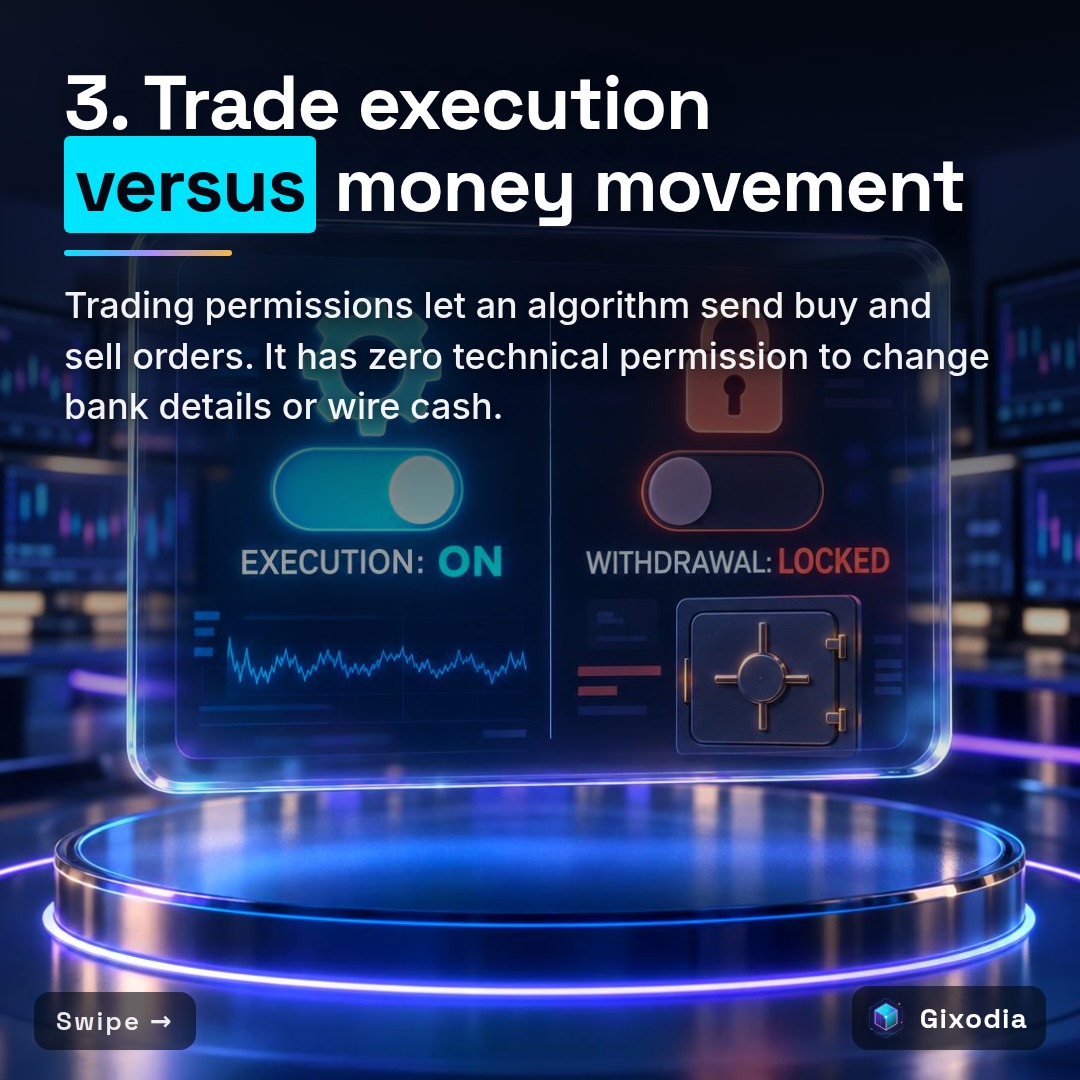
An EA's ordinary MT5 trade permission is not the same as permission to withdraw funds through your broker's portal. But do not treat that distinction as proof that every program or computer is safe: code, extra permissions, stolen credentials, malware, or remote access can create other ways to put your account or personal information at risk.
A trade can reduce your balance if it loses, and trading costs or account terms can also affect the balance. That is different from a withdrawal sent through the broker's payment process. Keep these risks separate when you assess a program: it may be able to place trades, while the broker's portal controls account and payment requests.
Keep your broker portal password private. Avoid giving a software provider remote control of your computer unless you understand what access that gives them and can end it. If you suspect someone has your credentials, contact the broker through its official channel and follow its steps to secure the account.
Be cautious if a seller tells you to send funds to a pooled account or a third party wallet without a clear explanation of who holds the funds and under what terms. You can read how to spot trading bot scams for more warning signs.
| Part of the setup | Typical role | What to verify |
|---|---|---|
| Broker and legal entity | Provides the account and handles account services under its terms | The legal entity, account terms, and how client funds are handled |
| Custodian or payment provider | May be involved in holding or moving funds, depending on the arrangement | Whether one is involved and what role it has |
| MT5 Expert Advisor | Sends trade instructions when allowed by the terminal and account | Its code, permissions, and any external access it requests |
| Computer running MT5 | Runs the terminal and its software | Who can access the device, and whether it is protected from malware or remote access |
How do you check an MT5 bot's permissions and account setup?
Check the account terms with the broker, then review the EA's permissions in MT5 and the security of the computer that runs it. Confirm which legal entity serves you, whether another provider is involved with funds, what access the software requests, and who else can reach your device or login details.
Start with the account agreement and the broker's official portal. Identify the legal entity named in your terms and look for an explanation of how deposits, withdrawals, and client funds are handled. If the wording is unclear, ask the broker to explain the arrangement in writing. Check the relevant regulator's public information for the jurisdiction and legal entity involved.
In MT5, open the Expert Advisors settings and review the automated trading controls. Check any options for DLL use or web requests if the EA asks for them. A permission should have a clear reason related to the software's stated operation. If you do not understand a request, do not enable it until you have an explanation you trust.
Also check the computer itself. Use a device you control, keep its security software and operating system up to date, and review who has remote access. A secure broker password cannot protect a computer that someone else can control.
Should you test the software on a demo account first?
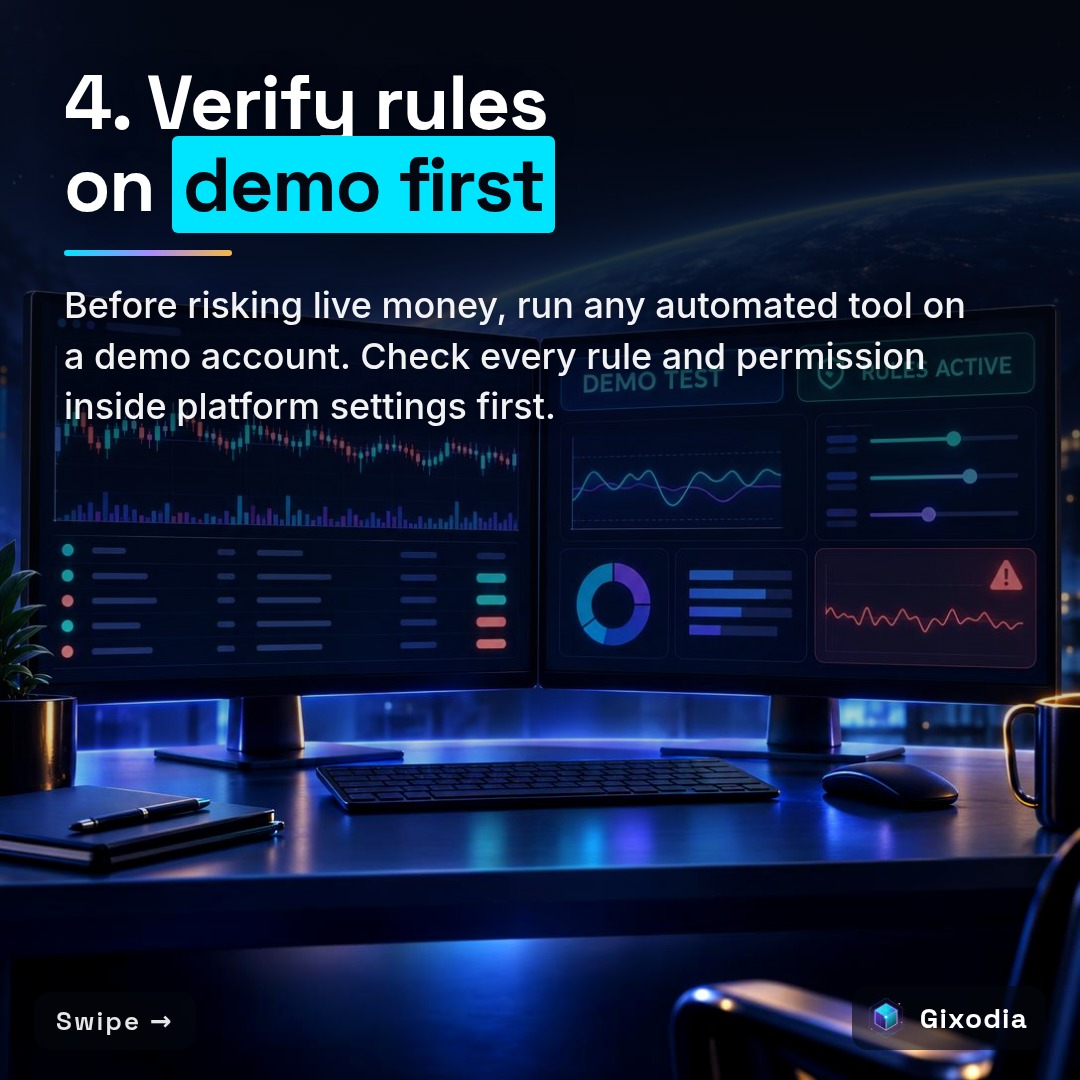
Yes. A demo account lets you check whether the EA is installed on the intended MT5 account, what trade instructions it sends, and how its settings work without risking live funds. A demo test cannot establish who legally holds your money or show every risk of using a live account.
On demo, check that you can identify when the EA is active and where to turn off automated trading in the terminal. Review any permissions it requests before allowing them. If its behavior does not match what you were told, stop the test and ask the provider for an explanation.
A demo environment does not reproduce every part of live trading. Execution can differ, and a trading strategy can lose money. Treat the demo as a way to learn the setup, not as evidence that live use will produce the same results.
Before using live funds, read the account terms and consider how much you can afford to risk. For a separate guide to checking performance claims, see how to verify trading bot performance.
What should you do if you want to stop an EA?
You can switch off automated trading in MT5 to stop the terminal from allowing automated trade activity, but that action does not withdraw funds or secure a compromised broker login. If you are concerned about account access, use the broker's security process as well and address any risk to the computer running MT5.
Learn where the automated trading control is before you need it. Turning it off is a platform action; it does not cancel pending account arrangements or close your brokerage account. Check open positions and orders separately, because stopping an EA does not automatically explain or resolve every order already on the account.
If you believe someone has accessed your broker portal, contact the broker using contact details from its official site. Change credentials through the proper process and ask the broker what steps are available for your account. If the computer may be compromised, disconnect remote access and get the device checked before using it for trading again.
How to do it, step by step
- Identify the account provider. Read the account agreement and note the broker's legal entity. Check the broker's official information and the relevant regulator's records for that entity.
- Trace the custody arrangement. Look for information about how funds are held and whether a custodian or payment provider is involved. Ask the broker to clarify any part of the arrangement you cannot confirm.
- Review MT5 permissions. Check the Expert Advisors settings, including automated trading and any DLL or web request permissions the software needs. Do not allow access you do not understand.
- Secure the computer and credentials. Keep broker portal logins private, protect the device running MT5, and know who can access it remotely.
- Test and learn the stop control. Use a demo account to review the EA's activity and practice turning off automated trading in MT5 before considering live use.
Checklist before you take the trade
- I know the legal entity named in my broker account terms.
- I have checked whether a custodian or payment provider is involved.
- I understand how the broker handles deposits and withdrawals.
- I have reviewed the EA's permissions in MT5.
- I know who can access the computer running the terminal.
- I have tested the setup on demo and know how to turn off automated trading.
Common mistakes and how to fix them
✗ The mistake: Assuming that every broker arrangement holds funds in the same way.
✓ The fix: Check the legal entity in your account terms and ask whether a custodian or payment provider is involved.
✗ The mistake: Assuming an EA can only affect trades because it runs in MT5.
✓ The fix: Review its code permissions, including any DLL or web request access, and consider the security of the computer it runs on.
✗ The mistake: Sharing broker portal credentials or remote computer access to make setup easier.
✓ The fix: Keep your credentials private and grant device access only when you understand what the other person can see or control.
✗ The mistake: Treating a successful demo test as proof that live use is safe.
✓ The fix: Use demo to learn the setup and behavior, then assess account, execution, and loss risks separately before any live use.
Frequently asked questions
Does an MT5 trading bot own my trading capital?
No. An EA is software that sends trade instructions through MT5; it is not the legal account holder. Check your broker agreement to learn which legal entity and any other providers are involved in holding or moving your funds.
Can an Expert Advisor access my broker password?
An EA does not get your broker portal password just because it can place trades in MT5. But the program's code, additional permissions, malware, or someone with remote access to your computer can create other security risks. Keep portal credentials private and protect the device.
Can an Expert Advisor withdraw money through MT5?
Ordinary trade permissions let an EA send trade instructions, not use the broker's separate withdrawal process. Still, review the EA's permissions and protect your computer and broker login because risks can extend beyond ordinary MT5 trading access.
How do I know who holds the funds in my broker account?
Read the account terms and identify the legal entity serving your account. Check whether a custodian or payment provider is involved and consult the regulator relevant to that entity and your location.
Does turning off Algo Trading withdraw my money?
No. Turning off automated trading stops the terminal from allowing automated trade activity. It does not move funds or close your brokerage account, and it does not replace the broker's process for securing an account.
Want your trading to follow fixed rules, the same way every time? Gixodia's trading software for MetaTrader 5 trades by predefined rules on your own broker account, in your own name. Try it free for 72 hours, a demo account is fine, then $499/year. Trading involves risk and you can lose money.