 GIX
How to Protect Your Trades from Cloud Network Freezes and Double Clicks

- A frozen platform screen does not mean the underlying financial market stopped moving.
- Repeated clicks during network lag queue up and fill as duplicate positions when data flow resumes.
- Server-side stop orders protect your account even if your local computer disconnects completely.
- Confirmation dialogs and button debouncing stop accidental double submissions at the user interface level.
- Algorithmic systems use unique transaction identifiers so retried requests never open duplicate positions.
What happens when your trading platform freezes mid-click?
When a trading platform freezes mid-click, your local screen stops updating price feeds while incoming order packets queue up inside network transmission buffers. The broker execution server continues operating normally, meaning any unacknowledged order instructions will process the moment network data flow resumes.
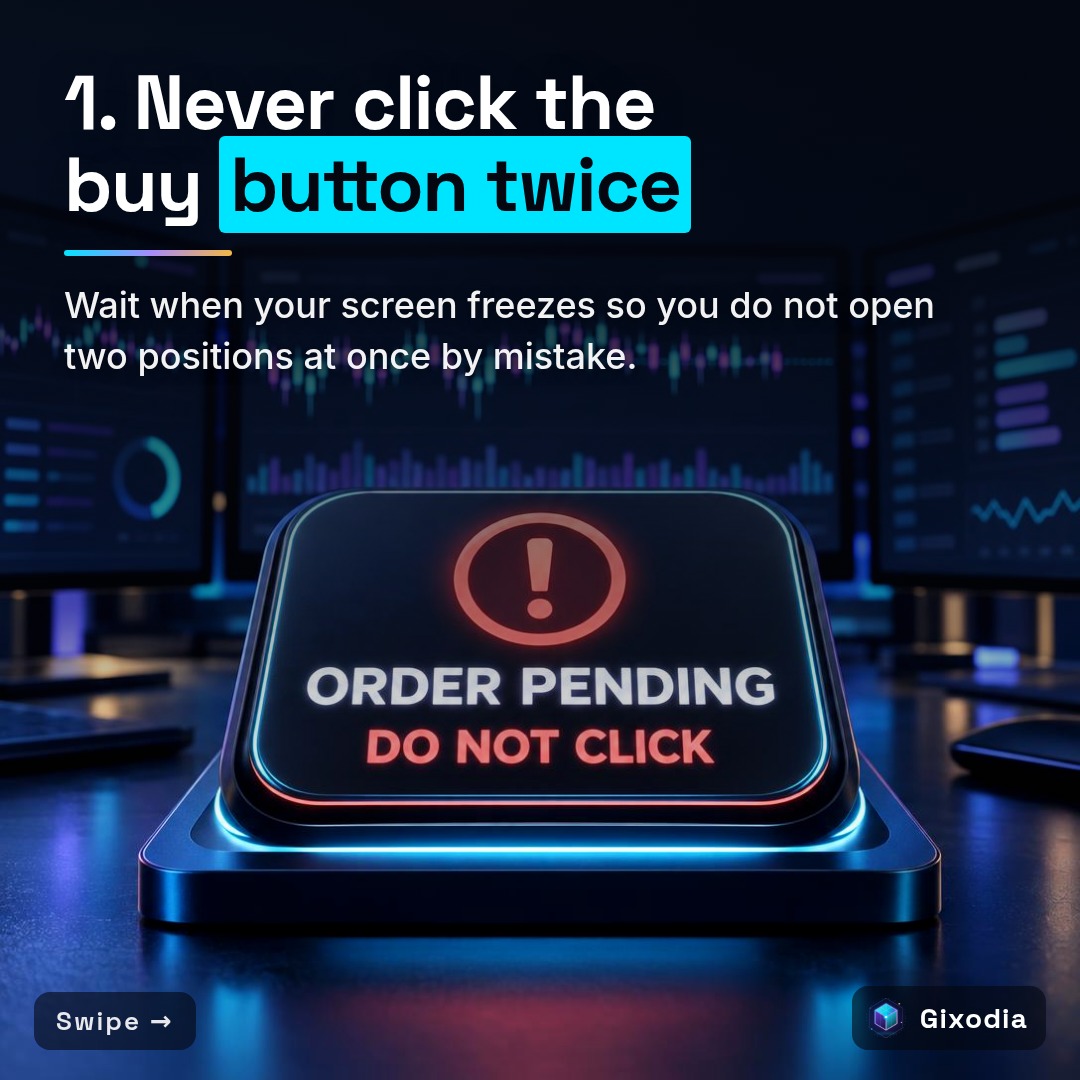
Imagine you are trading EUR/USD during an active London session. You spot an entry, configure your lot size, and click the buy button. Nothing changes. The price candle stands still, your open positions tab remains blank, and the execution spinner circles endlessly. In this split second, the instinctive reaction for many retail operators is frustration. You tap the buy button a second time, or perhaps a third, assuming the initial request failed to register.
In reality, your terminal simply experienced network packet latency or a temporary cloud gateway disconnect. The market did not halt, and your broker matching engine did not vanish. Behind the frozen screen, your operating system and network interface hold your pending outbound requests in memory queues. When the connection clears three seconds later, the server receives every single queued click in rapid succession. Instead of opening a single planned lot, the broker opens two or three identical positions simultaneously, multiplying your risk instantly.
Understanding this separation between client display and server execution is fundamental to risk management. Your personal device is merely a window into the market, not the trading engine itself.
- A frozen terminal UI does not indicate an inactive trading server.
- Outbound order clicks accumulate inside network socket buffers during latency spikes.
- Broker execution engines treat rapid sequential packets as intentional separate orders unless restricted.
What is idempotent order execution and double-click protection?
Idempotent execution is an operational architecture where submitting the exact same order instruction multiple times yields the exact same single execution result without creating duplicate positions. Double-click protection is an interface control that temporarily disables execution buttons immediately after user interaction to prevent accidental multi-firing.
In professional software engineering, an operation is defined as idempotent if executing it once or ten times results in the identical final state [6]. In financial markets, institutional trading protocols and exchange gateways like CME Globex enforce pre-trade risk controls under regulatory standards to filter out duplicate orders submitted within milliseconds [4]. When an automated system submits an order, it tags the packet with a unique client order identifier. If a network timeout occurs and the software retries the transmission using that identical identifier, the gateway recognizes the tag, drops the duplicate instruction, and merely reports the status of the first order.
For retail desktop traders on MetaTrader 5 or TradingView, double-click protection begins at the user interface layer [1, 2]. When you press buy or sell, well-designed software applies UI debouncing. This mechanism immediately locks the button for several hundred milliseconds, preventing a trembling hand, a mechanical mouse glitch, or an impatient second tap from sending two discrete instructions across the wire.
When manual traders disable safety barriers to pursue raw execution speed, they strip away these built-in safety nets, exposing their accounts to severe operational errors.
Why do server-side exit orders matter during cloud outages?
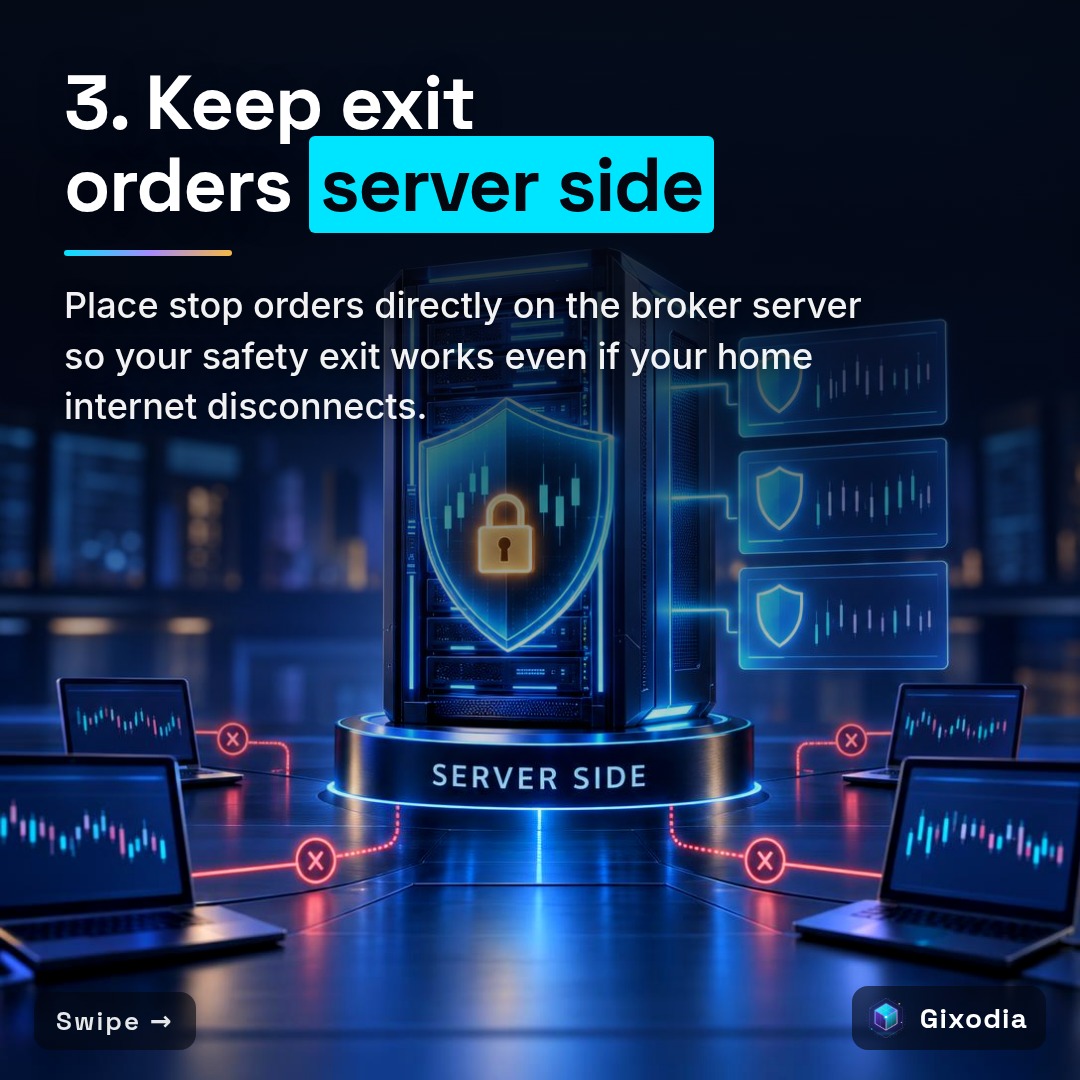
Server-side exit orders matter because they reside directly on your broker matching engine rather than your local computer. If a cloud outage, fiber cut, or device crash disconnects your terminal completely, a server-side stop loss continues protecting your balance without requiring active internet connectivity.
A critical rule of running trading operations, whether managing positions manually or utilizing automated software, centers on where your safety orders live. In MetaTrader 5, standard stop loss orders attached to open positions are stored server-side with your broker [1]. Once accepted by the host server, the exit trigger does not require your computer to remain turned on or connected to the internet.
Consider what happens during a severe residential internet outage while holding gold (XAU/USD). If you rely on mental stops, local terminal alert scripts, or manual mouse clicks to close positions when price invalidates your setup, you are entirely defenseless if your connection drops. Conversely, because a native stop loss order resides on the broker server, the matching engine liquidates the trade the moment the market trades at your price, protecting your capital regardless of local technical issues.
Understanding how orders route clarifies who controls your trading capital on MT5. Software places instructions, but your broker holds the funds and executes resting server orders even if your screen goes dark.
- Client-side alerts require continuous power, hardware stability, and active internet lines.
- Orders stored on the broker's server execute autonomously during client-side network failures.
- Unprotected market exposure during sudden volatility can breach maximum drawdown limits within minutes.
| Execution Mechanism | Behavior During Disconnect | Protection Against Duplicate Fills |
|---|---|---|
| One-Click Trading (No Confirmation) | Order requests queue locally or in network buffers; rapid clicks execute sequentially upon reconnect. | None; each click registers as a distinct order instruction. |
| Manual Order Confirmation Dialog | Secondary pop-up modal blocks rapid repeat clicks and forces manual parameter verification. | High; requires intentional user approval before any second packet is transmitted. |
| Server-Side Stop Loss Orders | Rests directly on the broker matching engine; executes automatically if price reaches the trigger level. | Complete; independent of client terminal connection status. |
| Algorithmic Idempotency Keys | Retries carry an identical transaction identifier; the server returns existing status instead of a new trade. | Complete; gateway systematically rejects duplicate trade payloads. |
How should automated trading rules handle dropped connections?
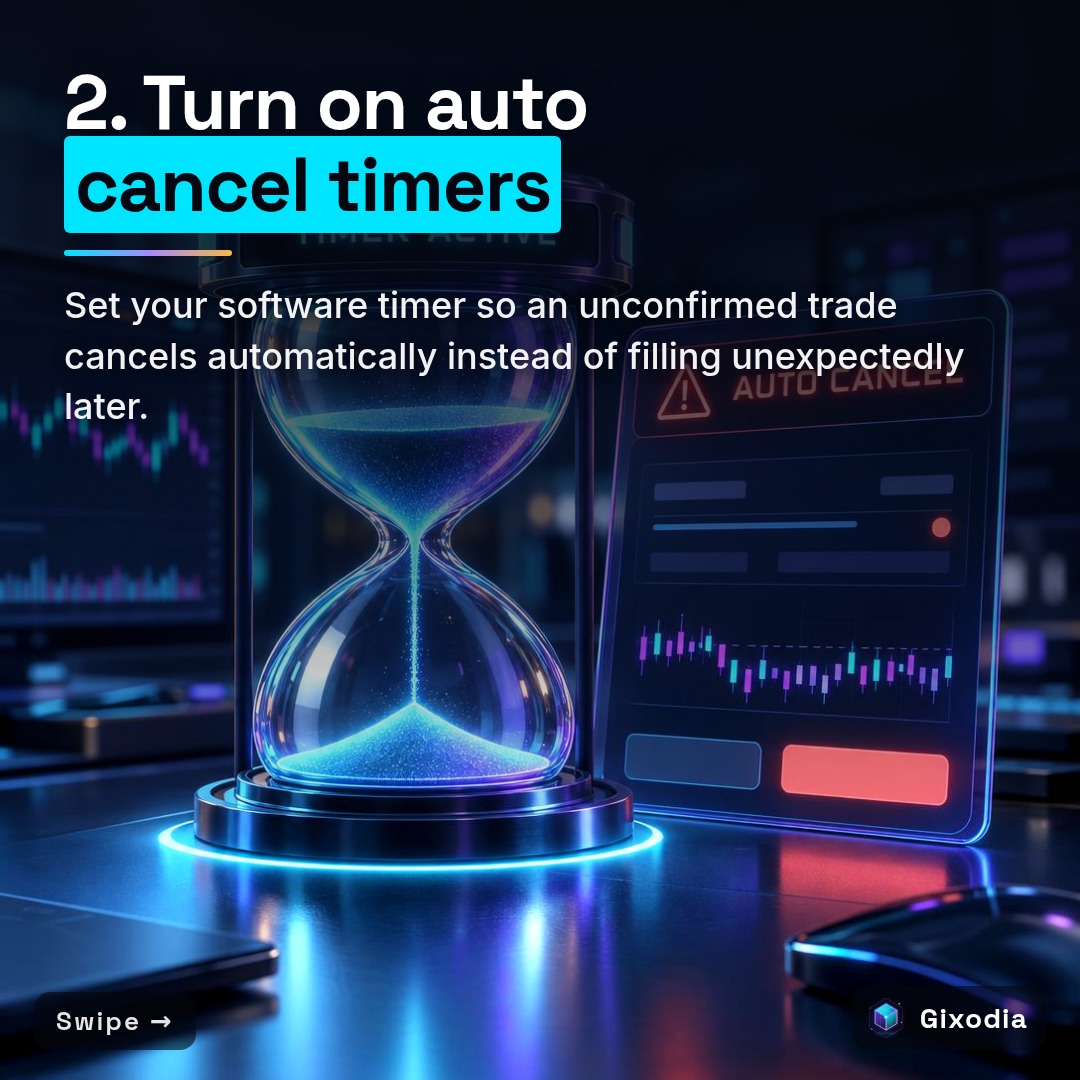
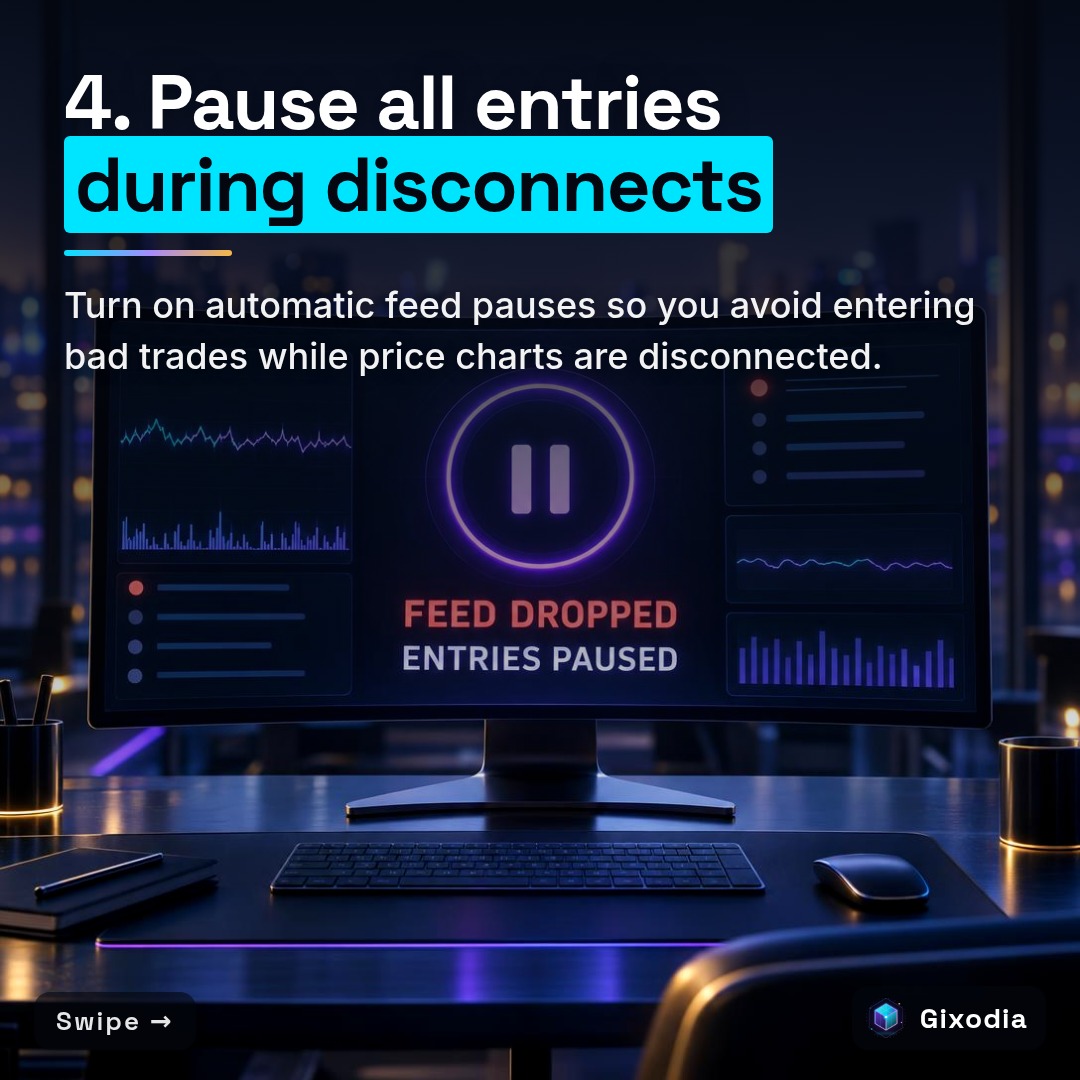
Automated trading rules handle dropped connections by continuously verifying connection health, rejecting ambiguous execution states, and halting fresh market entries until stable telemetry resumes. Sound automated systems never send blind order retries without first polling the broker server for current order status.
Algorithmic execution removes the emotional urge to panic-click during latency, but it requires strict defensive programming [5]. High-grade Expert Advisors for MetaTrader 5 do not attempt to guess whether an unconfirmed order went through. If a socket timeout occurs during order dispatch, professional software logs the incident, inspects the terminal trade journal, and queries the broker server using order tickets before taking further action.
This principle is central to disciplined engineering. As built into Gixodia's trading software, an automated system operates strictly by predefined rules, behaving the same way every time without hesitation, fatigue, or panic. When cloud connections flicker or parameters approach preset risk thresholds, sound software scales down exposure or pauses new entries entirely rather than forcing trades into erratic market conditions.
Traders exploring algorithmic trading must recognize that execution robustness matters just as much as market timing. Software that respects broker connection states shields accounts from severe balance damage caused by repetitive retry loops.
How can you tell if your terminal is disconnected or the market has halted?
You can verify connection status by checking the network status monitor located in the bottom-right corner of MetaTrader 5 and inspecting your terminal journal tab. If the indicator displays red bars, 'No connection', or zero transfer speeds, your local terminal has lost contact with the broker access server.
During normal operation, the connection monitor in the lower corner of your trading terminal alternates green signals and tallies incoming and outgoing data traffic in kilobytes [1]. If those bars turn completely red or flash 'Common error', the client software has lost contact with the broker access point. Price quotes on your chart freeze, the depth of market stops refreshing, and the order submission pane stops responding.
When this occurs, stepping away from the mouse is the safest tactical choice. Attempting to modify existing orders, drag visual stop lines on the chart, or hit close buttons merely stores uncommitted actions that fire haphazardly once the connection recovers. Instead, switch to the terminal Journal tab, which records chronological system events. The journal will explicitly state whether the terminal is attempting a socket reconnect, failing DNS resolution, or facing server maintenance.
Having this diagnostic discipline prevents retail traders from losing capital to unforced platform errors during routine infrastructure hiccups.
- Check the bottom-right terminal status bars: green indicates healthy two-way data traffic.
- Red connection bars indicate broken communication with the broker access point.
- Open the terminal Journal log to view real-time socket connection and authorization errors.
How to do it, step by step
- Enable order confirmation barriers in your terminal. Open MetaTrader 5, navigate to Tools, select Options, and open the Trade tab. Ensure that One-Click Trading is unchecked if you want mandatory manual confirmation dialogs before any order is submitted to your broker.
- Preset protective default parameters. Within the same Trade options tab, preset standard default lot sizes and acceptable slippage tolerances. This ensures that if an order does transmit, it executes with pre-calculated risk parameters rather than an outsized balance-threatening volume.
- Turn on sound notifications for execution feedback. Navigate to Tools, click Options, and open the Events tab. Ensure audio events are enabled, particularly for order execution, modifications, and connection drops, providing instant auditory feedback if an order executes during screen lag.
- Monitor terminal connection health. Observe the connection meter at the lower-right corner of the terminal window. If latency figures rise or the icon switches to disconnected, refrain from clicking any trade modification buttons.
- Audit open trades immediately after reconnection. When data connectivity returns, immediately open the Trade toolbox window. Verify your exact position size, confirm ticket numbers, and ensure that protective stop loss orders appear correctly in the terminal table.
Checklist before you take the trade
- Confirm protective stop loss orders exist server-side on your broker trade list
- Keep hands completely off the mouse when price quotes stop ticking
- Check the terminal Journal tab for socket disconnect notices before retrying
- Verify connection indicator bars show green traffic before modifying open orders
- Ensure order confirmation modals are active if trading manually
- Keep your broker direct emergency phone contact bookmarked on a mobile device
Common mistakes and how to fix them
✗ The mistake: Pounding the buy or sell button repeatedly when the chart freezes mid-trade.
✓ The fix: Wait for terminal connectivity to resolve, check the journal log, and verify open trades before attempting another submission.
✗ The mistake: Relying on mental stop losses or third-party client scripts that require live terminal connectivity.
✓ The fix: Always place native stop loss orders that sit directly on the broker's server matching engine.
✗ The mistake: Enabling one-click trading on volatile assets without setting default position sizes.
✓ The fix: Lock in conservative fixed default lot sizes in terminal preferences to prevent high-leverage misclicks.
✗ The mistake: Re-submitting a failed trade immediately from mobile without checking open account exposure.
✓ The fix: Log into your account on mobile to audit active tickets before entering a fresh market order.
Frequently asked questions
Can a double click open two positions at the same time?
Yes. If one-click trading is active and your platform experiences latency, two rapid clicks can dispatch two distinct order requests to the broker. When the connection clears, both requests process sequentially, resulting in double your intended position size.
Does my stop loss work if my computer shuts down or loses internet?
Yes, provided it is a standard server-side stop loss order placed on MetaTrader 5. Once the broker server accepts the stop loss parameter, the order resides on their infrastructure and triggers even if your local terminal is completely powered off.
What should I do if my trading platform freezes while entering a trade?
Do not click any buttons. Check your terminal connection indicator in the bottom corner and monitor the Journal tab. Wait for the feed to restore, then audit your open trades toolbox to see if the order executed before taking further action.
How does automated software prevent duplicate orders during internet lag?
Professional automated systems assign unique identifiers to each planned order and verify broker trade status before retrying. When connection drops occur, rule-based systems pause new actions rather than spamming the broker server with duplicate requests.
Want your trading to follow fixed rules, the same way every time? Gixodia's trading software for MetaTrader 5 trades by predefined rules on your own broker account, in your own name. Try it free for 72 hours, a demo account is fine, then $499/year. Trading involves risk and you can lose money.
Sources
- One Click Trading - Trading Operations - MetaTrader 5 Help (metatrader5.com)
- How to Place Trades on TradingView | Order Execution Guide (optimusfutures.com)
- cmegroup.com
- Idempotency: Preventing Double Charges and Duplicate Actions (dzone.com)